Companion App Support
Companion App Support is a setting inside Toontown Rewritten itself, not something TTR Tracker adds. Turn it on, and any companion app on the same computer, this one included, can read your toon while you play.
What the setting does
With Companion App Support on, Toontown Rewritten opens a door on your own computer that a companion app on the same machine can read: its Local API, on port 1547, or a higher one up to 1552 if you are running more than one client. One request answers with your toon, your Laff, where you are standing, your Gags and ToonTasks, your fish, flowers and Cog suits, your golf and kart racing stats, your jellybeans, boss rewards, your Cattlelog and tokens.
It never sees your Toontown password, and it never asks for one. Toontown Rewritten shows an in-game prompt the first time a companion app connects, you approve it there, and that prompt is the whole of the connection.
The setting is off by default, and turning it on needs no restart.
How to turn it on
Open ttrtracker.com on the computer you play on, then:
-
Say Allow if your browser asks
Your browser may ask to access other apps and services on this device. Choose Allow - that is how this page reads your game.
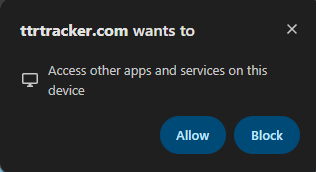
- Closed it without choosing? Click Connect in the top-right corner and it asks again.
- Chose Block? Click the icon to the left of the web address and switch Apps on device back on.
-
Turn on Companion App Support
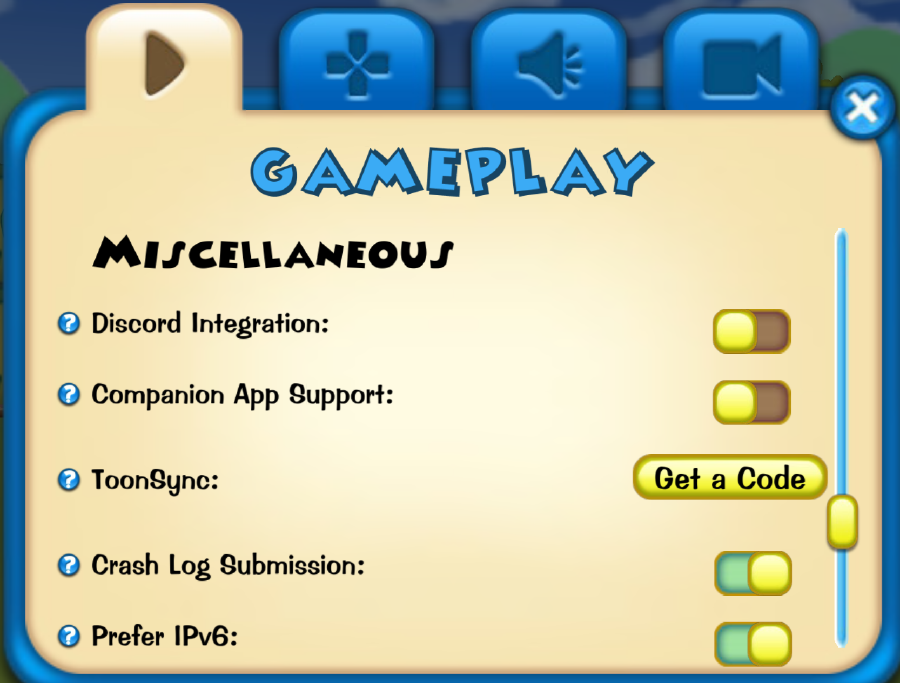
In Toontown, open your Shticker Book → Options → Gameplay → Miscellaneous, and turn Companion App Support ON. You only do this once, and you don’t need to restart.
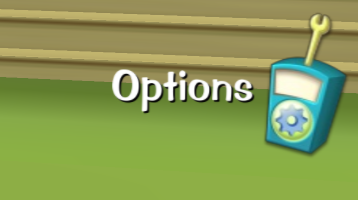
Options is in the bottom right. Gameplay, then down to Miscellaneous. 
This is the row, switched on. -
Say yes to the pop-up in the game
Click Yes on the pop-up in Toontown from ttrtracker.com.
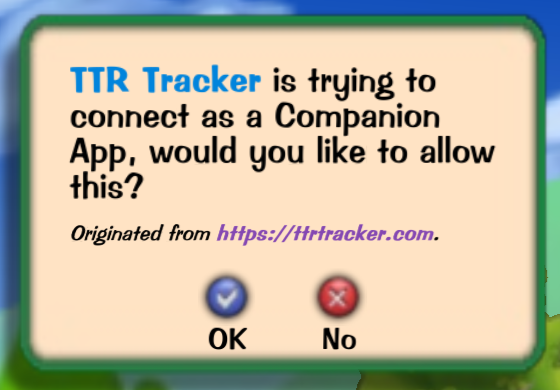
This is it. Click Yes. -
Keep this tab open while you play
Keep the tracker’s tab open while you play. It reads your game every few seconds; close it and nothing is saved - no new fish, no facility times, no leaderboard place. It is happy sitting behind the game.
-
Still not working?
If you clicked No on the pop-up, restart Toontown and it will ask again. Some browsers also won’t let a web page read your computer. Try a different browser on the computer you play on.
How you’ll know it worked
The status in the top-right corner turns green and says Tracking. It is on every page, so one look tells you whether the tracker can still see your game.
Questions
- What is Companion App Support?
- It is a setting in Toontown Rewritten’s own options, under Shticker Book, Options, Gameplay, Miscellaneous. With it on, the game publishes what your toon is doing to companion apps running on the same computer. It is off until you turn it on, and turning it off again stops the tracker reading anything.
- Is it safe? Does it see my Toontown password?
- It never sees your Toontown password, and it never asks for one. Toontown Rewritten itself opens a door on your computer for companion apps, you approve the tracker through a prompt inside the game, and that is the whole of the connection. The account you sign in with here shares a name and an email address and nothing else.
- Do I need to download anything?
- No, and there is nothing to sign up for either. It is a web page: open it in the browser you already have, on the computer the game is running on, and it starts reading. An account is optional and only decides whether your toons follow you to another device. There is an optional Windows app for people who play fullscreen - the same tracker in your system tray - but nothing needs it.
- Does it work on a Mac?
- The tracker is a web page, so it opens in any modern browser on any machine, and everything under Guides works whether you are signed in or not. The live reading needs Toontown Rewritten running on the same computer with Companion App Support switched on - the setting is in the Shticker Book, in the same place on whichever client you play.